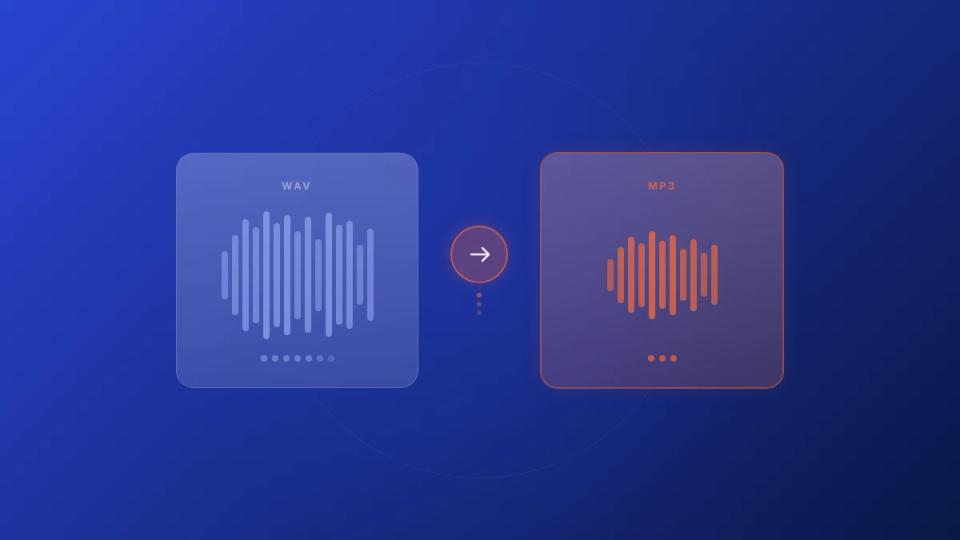
Convert WAV files to MP3 with adjustable bitrate directly in your browser using this free WAV to MP3 converter. Batch convert multiple files, preview audio before downloading, and grab everything as a ZIP. Processing happens locally – no uploads, no account, no installs.
WAV files sound great but they’re massive. A 4-minute track at 44.1 kHz / 16-bit stereo runs about 40 MB as a WAV. The same track as a 320 kbps MP3 is roughly 9 MB. When you’re sending files to collaborators, submitting tracks for premieres, or uploading to platforms, that size difference matters.
Premierely’s WAV to MP3 converter handles the conversion in seconds. Drop your files in, pick your bitrate, and download. That’s it.
Why convert WAV files to MP3 before sharing
WAV is an uncompressed audio format that preserves every sample of the original recording. That’s ideal for production and mastering. But uncompressed also means large – roughly 10 MB per minute at CD quality. When the goal shifts from editing to sharing, that file size becomes a problem.
Here’s where converting to MP3 makes sense:
- Submitting tracks to premiere channels – Channel owners receiving 5-10 submissions per day don’t want to download 40 MB files. MP3 at 320 kbps delivers near-identical quality at a quarter of the size.
- Sharing demos with collaborators – Email attachment limits cap at 25 MB on most providers. A single WAV track can exceed that. MP3 keeps you under the limit.
- Uploading to platforms faster – A 40 MB WAV takes four times longer to upload than a 9 MB MP3 on the same connection.
- Saving storage on devices – Artists juggling hundreds of project files benefit from keeping shareable versions compressed while archiving lossless originals.
The goal isn’t to replace your WAV masters. It’s to have a smaller, compatible version ready for every situation that doesn’t require lossless audio.
How to convert WAV to MP3 online in 4 steps
This WAV to MP3 converter runs entirely in your browser using the Web Audio API. Your files never leave your device – there’s no server upload, no account required, and it works on any modern browser. Each file can be up to 100 MB.
Here’s the workflow:
- Drag and drop your WAV files – drop one or multiple files into the converter at once
- Select your target bitrate – choose 128, 192, 256, or 320 kbps depending on your use case
- Preview the converted audio – play back the MP3 version directly in the browser before saving
- Download – save files individually or grab everything as a single ZIP
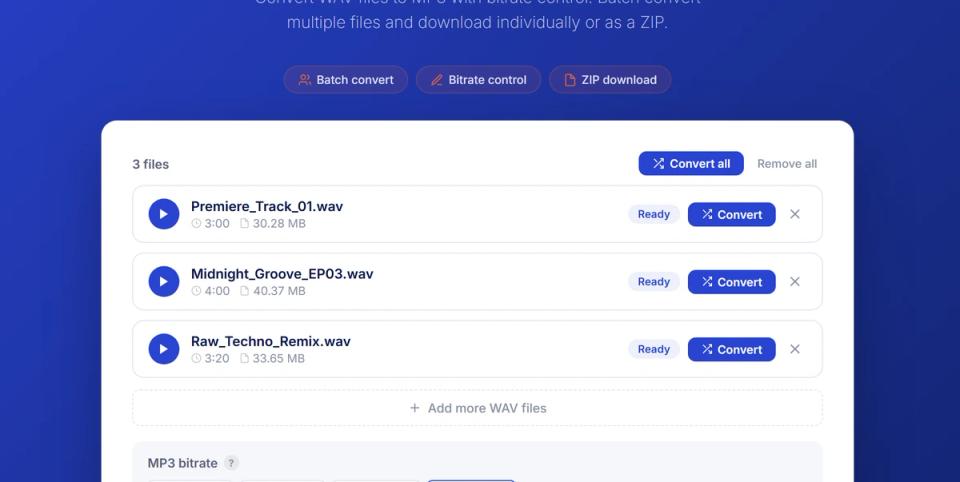
Drop your WAV files into the converter, select a bitrate, and download as MP3. Files process locally in your browser.
The converter shows file size comparison for each track – before and after. You can see exactly how much space the conversion saves. Processing speed depends on file length and your device, but most tracks convert in under 10 seconds.
How to choose the right MP3 bitrate
MP3 is a lossy compression format that reduces file size by removing audio frequencies most listeners can’t perceive. The bitrate you choose controls how much data the encoder keeps per second of audio. Higher bitrate means more data, better quality, and larger files.
Here’s what each option sounds like in practice:
| Bitrate | File size per minute | Best for |
|---|---|---|
| 128 kbps | ~1 MB | Internal drafts, reference listens, rough demos |
| 192 kbps | ~1.5 MB | Preview clips, playlist submissions, streaming |
| 256 kbps | ~2 MB | General distribution, sharing with collaborators |
| 320 kbps | ~2.4 MB | Final delivery, premiere submissions, download gates |
For music distribution and premiere submissions, 320 kbps is the standard. It’s the maximum bitrate for MP3 encoding and sits at the threshold where most listeners cannot distinguish it from lossless audio. Fraunhofer IIS, the institute that developed the MP3 format, designed the codec to achieve perceptual transparency at higher bitrates by eliminating only masked frequencies.
If you’re converting files for personal reference or quick sharing where quality isn’t critical, 192 kbps is a solid middle ground. Below 128 kbps, artifacts become noticeable on most playback systems – especially in high-frequency content like cymbals and vocal sibilance.
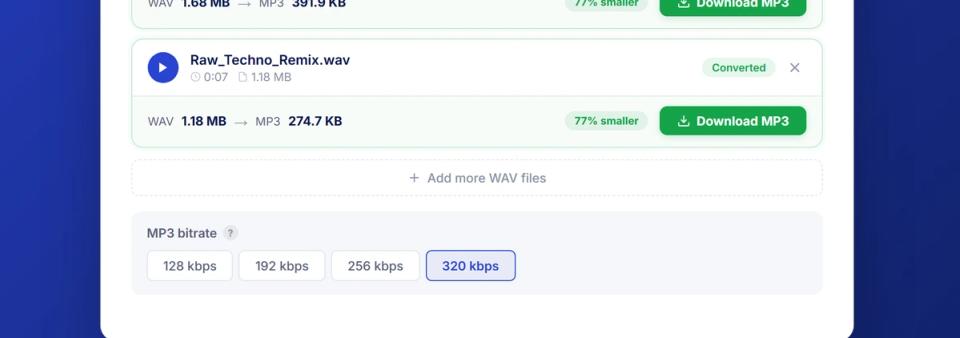
Select your target bitrate before converting. The file size comparison updates to show how much space you’ll save at each setting.
How to batch convert multiple WAV files at once
Most online converters handle one file at a time. This tool supports batch conversion – load an entire EP, album, or folder of stems and convert everything at one bitrate in a single pass. No need to run separate sessions for each track or re-upload between conversions.
Here’s how batch conversion works:
- Load multiple WAV files – drag your full project folder or select multiple files at once
- Set the bitrate once – the selected bitrate applies to all files in the batch
- Review file sizes – each track shows its original WAV size and the resulting MP3 size
- Download individually or as ZIP – grab specific files or bundle everything into one download
This is built for real production workflows. Finished mixing a 6-track EP and need MP3 versions for your label? Load all six, set 320 kbps, and download the ZIP. The whole process takes under a minute.
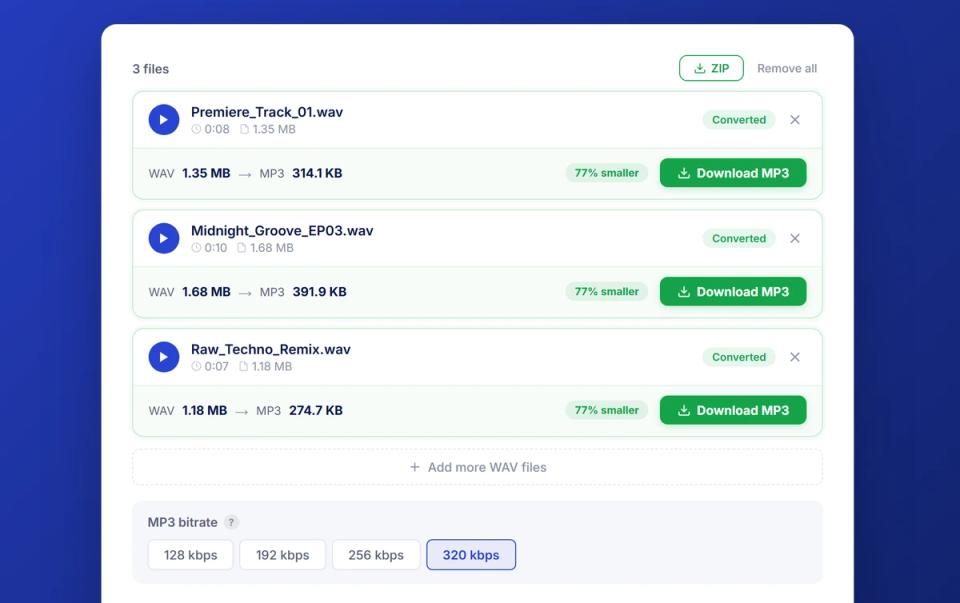
Multiple files loaded for batch conversion. Each track shows original and converted file sizes. Download individually or grab the ZIP.
Each converted file keeps the original filename with the .mp3 extension. No renaming needed on your end.
When to use WAV vs MP3 for SoundCloud uploads
SoundCloud accepts both WAV and MP3 uploads, but the platform processes them differently after upload. Understanding what happens to your file after you hit upload helps you pick the right format. The choice comes down to whether you prioritize source quality or upload speed.
When you upload any audio file, SoundCloud transcodes it into a streaming-optimized format for playback. The original file only matters in two scenarios: the transcoding source quality, and whether you’ve enabled downloads. If downloads are on, listeners receive your original uploaded file – not the transcoded stream version.
Upload WAV when:
- You want the highest quality source for SoundCloud’s transcoder
- Downloads are enabled and you want listeners to receive lossless audio
- Archival quality matters more than upload speed
Upload MP3 320 kbps when:
- You’re submitting tracks for premieres on other channels
- Upload speed matters (4x faster than WAV)
- You’re uploading multiple tracks and bandwidth is limited
- The track won’t have downloads enabled
For SoundCloud channel owners running premieres and reposts through Premierely, MP3 at 320 kbps is the practical standard for incoming submissions. Labels and artists submit tracks in this format because it balances quality with file size. Converting your WAV masters to 320 kbps MP3 before submission keeps the process efficient for everyone involved.
After converting your files, use the audio fade tool for clean intros and outros. You can also tag files with cover art and ID3 metadata before uploading.
Key takeaways
- WAV files are 10x larger than MP3 at the same duration – converting to MP3 makes files practical for sharing, submitting, and uploading without losing audible quality at 320 kbps
- 320 kbps is the standard for music distribution – it’s the maximum MP3 bitrate and sits where most listeners can’t tell the difference from lossless
- Batch conversion handles full projects at once – load an entire EP, convert at one bitrate, and download as a ZIP in under a minute
- Your files never leave your device – the converter processes everything locally in your browser with no server uploads, no account, and no installs
- SoundCloud transcodes every upload regardless of format – upload WAV for archival quality with downloads, or MP3 320 for faster uploads on submissions
- Bitrate choice depends on the use case – 320 for final delivery, 192 for previews, 128 for internal drafts
Try the WAV to MP3 converter free in your browser. And if you’re a SoundCloud channel owner managing premieres, reposts, and submissions in one place, check out Premierely.
Sources: