

A fade takes seconds to add but it’s the difference between a rough export and polished audio. Whether you’re uploading to SoundCloud, stitching podcast episodes, or building a release preview for your label – getting the fade right matters. This guide covers equal-power vs linear fades, the right duration for every format, and a workflow for compiling multi-track previews.
Fades are one of those small production details that separate rough exports from polished audio. A hard start or abrupt cutoff makes any track sound unfinished. But opening a full DAW just to add a 3-second fade is overkill.
Premierely’s free fade tool handles it in seconds. Drop your file in, set your fade durations, and download. That’s it.
Why your tracks need proper fade in and fade out effects
Not every track needs a fade, but in many cases a fade makes all the difference. A fade in eases the listener into the audio instead of hitting them with full volume from the first sample. A fade out lets the track breathe to silence instead of cutting dead. These small transitions take seconds to add and can change how your audio is perceived – on SoundCloud, streaming platforms, and anywhere listeners hit play.
Here’s where fades matter most:
- Tracks heading to SoundCloud or streaming platforms – A clean intro and outro signal that the audio was prepared with care, not just bounced raw.
- Podcast episodes and voice recordings – Listeners notice abrupt starts. A short 1-2 second fade in smooths the entry without losing momentum.
- Snippet previews and promotional clips – Cutting a 90-second preview from a full track? Fades keep the edges from sounding chopped.
- DJ mixes and compilations – Fades between tracks create smooth transitions that feel intentional rather than stitched together.
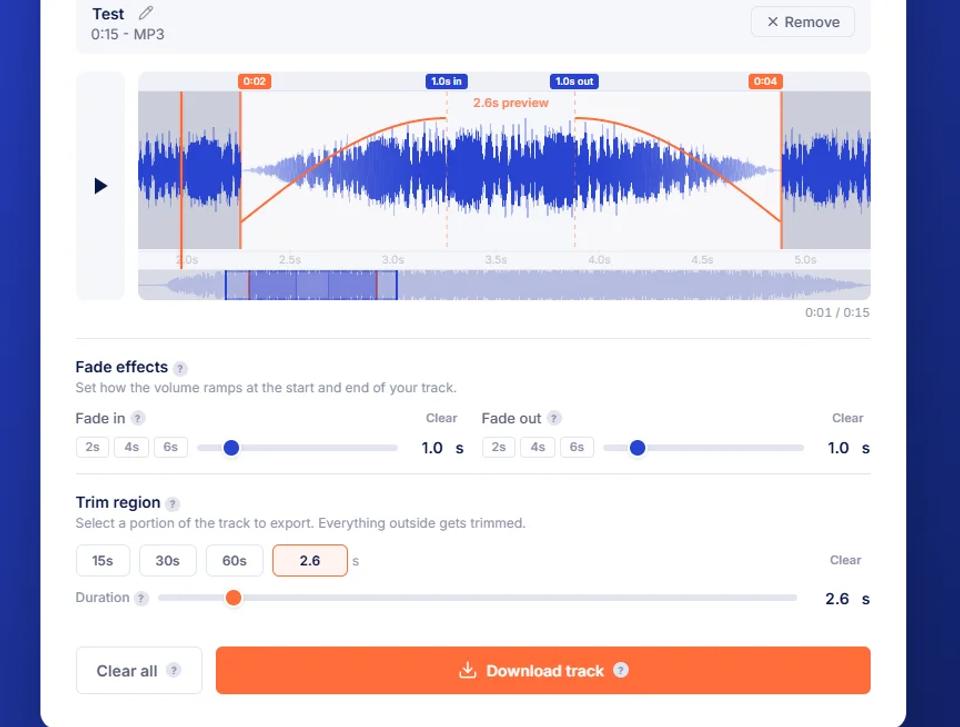
Set fade in and fade out durations with sliders or presets, then use the trim region to export just the section you need.
How to fade audio in your browser
The audio fade tool runs entirely in your browser using the Web Audio API. Your audio files never leave your device – everything processes locally. There’s no account to create, nothing to install, and it works on any modern browser across desktop and mobile.
Here’s the workflow:
- Drag and drop your audio file – supports MP3, WAV, and OGG up to 50MB
- Set your fade-in duration using the slider or type an exact number (up to 30 seconds)
- Set your fade-out duration the same way
- Preview the result with the built-in audio player
- Download in the same format you uploaded – MP3 stays MP3, WAV stays WAV
The editor shows an interactive waveform so you can see exactly where your fades start and end. You can zoom in for precision, and a minimap gives you context of the full track while you work on a section.
Preset buttons for 2, 4, and 6 second fades speed things up when you don’t need custom timing. And if you change your mind, clear buttons let you reset either fade instantly.
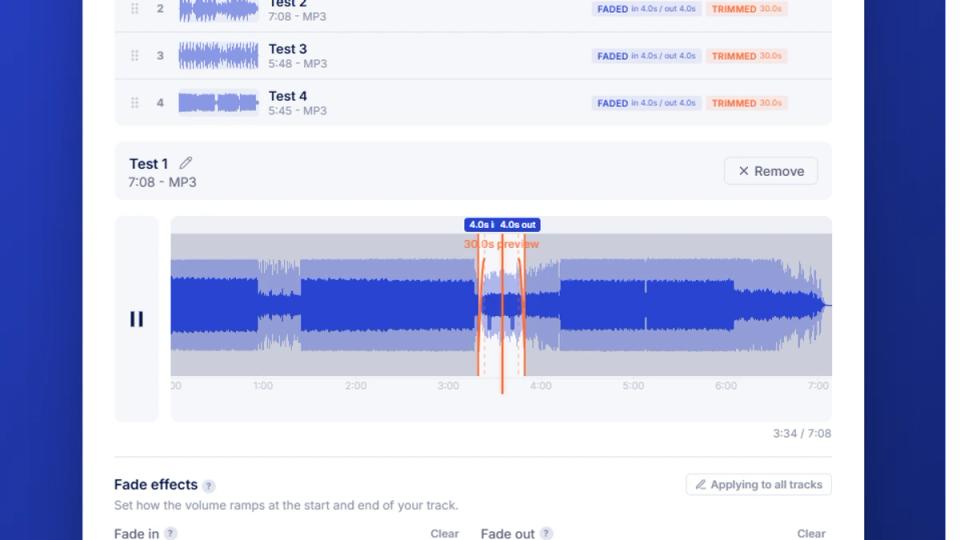
The editor shows your waveform with fade regions highlighted. Set durations with sliders, presets, or exact values.
Equal-power fades vs linear fades
Most free audio fade tools use linear fades. This tool uses equal-power fades by default – the same algorithm found in professional DAWs like Pro Tools, Logic Pro, and Ableton. The difference is audible, and it matters if you want your fades to sound natural rather than mechanical.
A linear fade changes volume in a straight line. That seems logical, but it creates a dip in perceived loudness at the midpoint. Your ear picks up on that dip. It makes the transition feel uneven.
An equal-power fade follows a curve that keeps perceived energy consistent. At the midpoint, amplitude sits at roughly 0.707 rather than 0.5. This compensates for how human hearing perceives volume, according to Sound On Sound’s crossfade analysis.
In practical terms:
- Linear fade – volume drops noticeably in the middle, then picks up again. Sounds like a “dip.”
- Equal-power fade – volume perception stays smooth from start to finish. Sounds natural.
The Audacity manual describes equal-power fades as having a shape that “bows up in the middle” compared to linear, keeping the volume level steady through the transition.
Most browser tools skip equal-power because the math is more involved. But it’s the reason fades from this tool sound right without any tweaking.
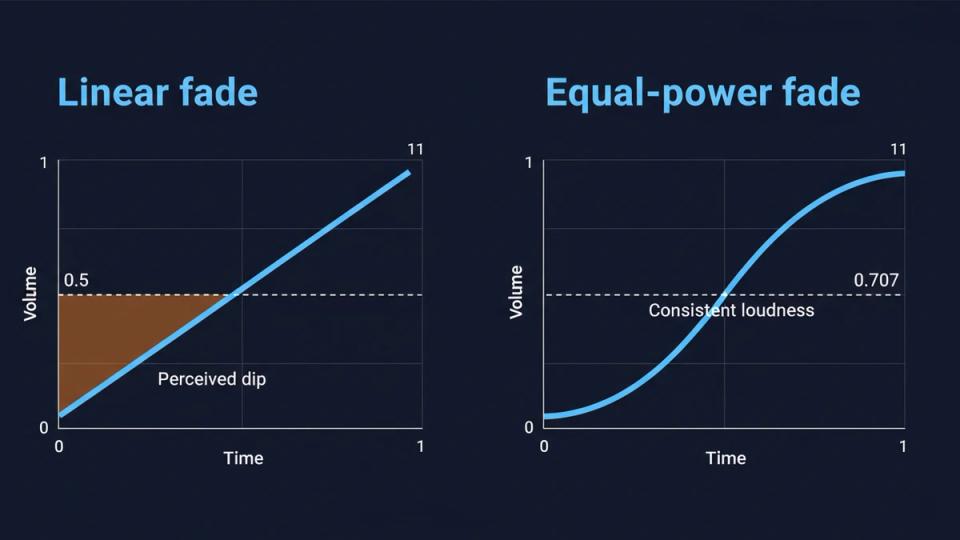
Linear fades (left) create a volume dip at the midpoint. Equal-power fades (right) maintain consistent perceived loudness throughout the transition.
Edit multiple tracks and compile them into one file
Most online audio tools handle one file at a time. This tool supports multi-track editing – load several files at once, set individual fade durations on each, drag to reorder, and merge everything into a single WAV. That makes it useful for compilations, sample packs, and preview reels.
Here’s what that looks like in practice:
- Load your files – drag multiple audio files into the editor at once
- Set fades per track – each track gets its own fade-in and fade-out durations
- Reorder by dragging – arrange the tracks in whatever sequence you need
- Compile – merge all tracks into one continuous WAV file with your fades applied
Each track shows a mini-waveform preview with badges showing which effects are applied.
You can remove individual tracks or clear the entire list at any point.
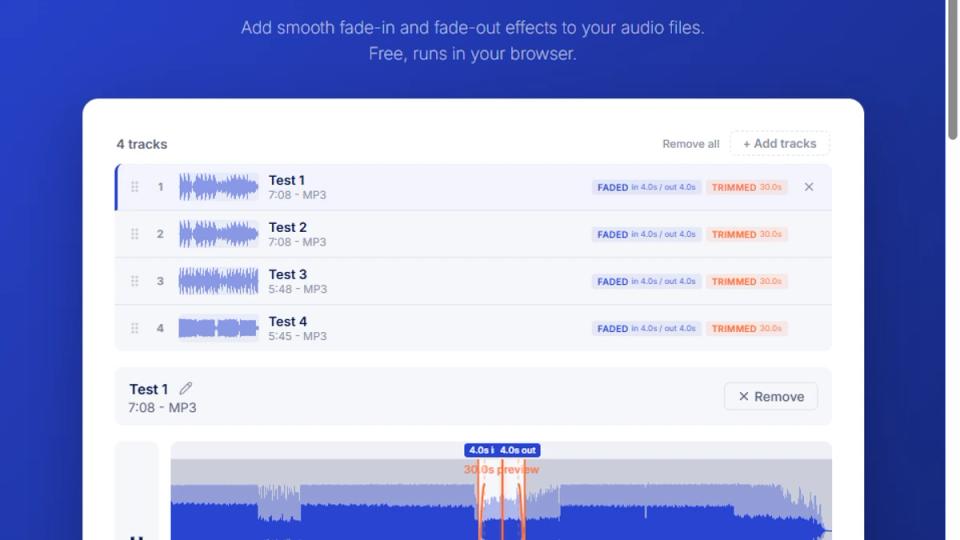
Load multiple tracks, set individual fades, drag to reorder, and compile into a single file.
Trim, clip, and fade in one workflow
Sometimes you only need a section of a track, not the whole file. The trim feature lets you select a specific region, apply fades to that clipped portion, and export just the part you need. No separate cutting tool required – trimming and fading happen in the same editor.
Enable the clip region control, set your start and end points, and the tool cuts everything outside that window. Your fade-in applies to the start of the clipped section, and your fade-out applies to the end. The duration display updates in real time, so you always know how long your export will be.
How labels use fades to build snippet compilations
Labels regularly create snippet compilations to promote upcoming releases. Take 90 to 120 second previews of each track from an EP, line them up, and upload as a single file to SoundCloud. Fades between each snippet turn a rough cut into a polished preview that sounds intentional.
As a label owner myself running Märked, I’ve done this workflow many times. The old process meant opening a DAW, importing each snippet, manually adding fades, bouncing to a single file, and exporting. With the multi-track and compile features in this tool, the same result takes a fraction of the time.
Here’s the label compilation workflow:
- Export 90-120 second snippets from your tracks
- Load all snippets into the audio fade tool
- Set fade-out and fade-in on each track (2-4 seconds works well)
- Drag to arrange in the release order
- Compile into one WAV
- Upload to SoundCloud as your release preview
This workflow applies to any label, collective, or artist releasing multi-track projects. If you’re putting out an EP and want a single preview file with clean transitions, this tool handles it without a DAW.
Key takeaways
- Fades take seconds but make audio sound finished – no more abrupt starts or hard cuts on your uploads
- Equal-power curves sound better than linear fades – the tool uses professional-grade fade algorithms by default
- Multi-track compile is the standout feature – load multiple files, set individual fades, merge into one
- Trim and fade in one step – no need for separate tools to cut and transition
- Everything stays on your device – no server uploads, no account required, works in any modern browser
- Labels and collectives – build snippet compilations for release previews without opening a DAW
Try the free fade tool in your browser. And if you’re a SoundCloud channel owner looking to manage premieres, reposts, and submissions in one place, check out Premierely.
Sources: