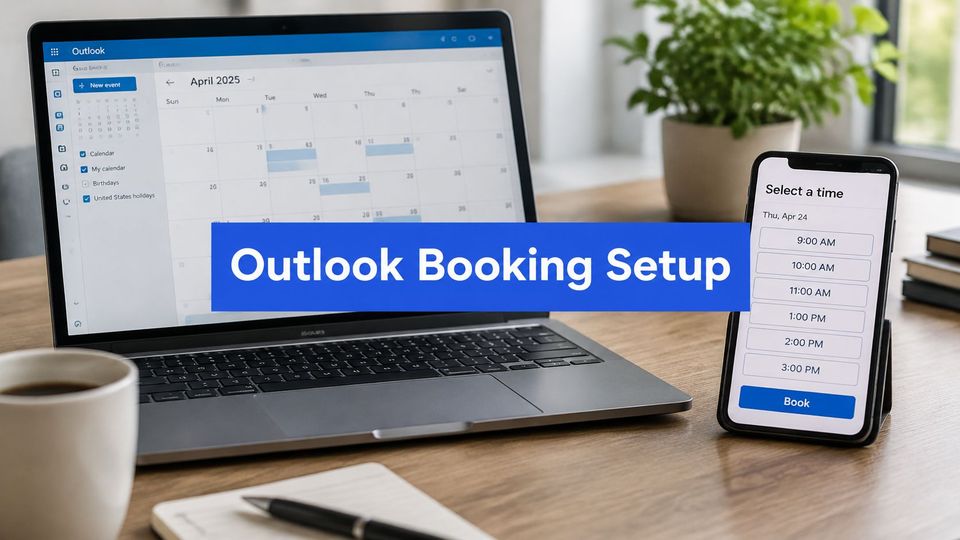
You have a premiere slot open on Thursday, a repost to check on Friday, and three artists waiting in your inbox for dates. You answer one, another books the same day elsewhere, and you spend the evening moving events by hand. A solid Booking Page Outlook setup stops that loop because the page reads your real busy times before it offers a slot. You still decide what runs, but you don't chase dates in email.
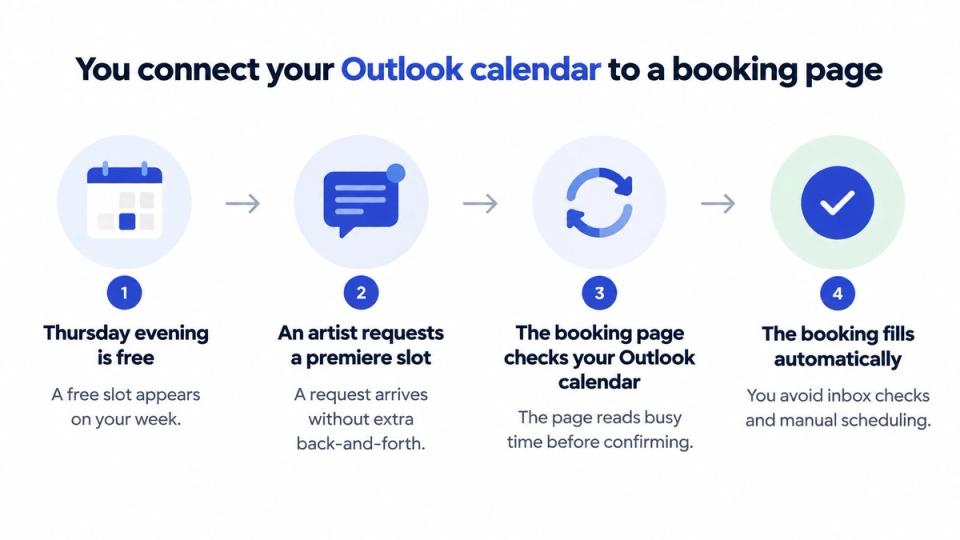
You connect your Outlook calendar to a booking page
Your Thursday evening is free, an artist asks for that premiere slot, and you want the booking to land without you checking your inbox every hour. That only works if the booking tool reads Outlook. Not every tool does, so you check its calendar list first and stop if Outlook isn't on it.
You follow five steps before you share anything
- You pick the calendar that holds your real availability because the page can only block time it can see. You move personal events to a separate calendar so private details never sit behind a public link.
- You confirm how the tool reads that calendar because a direct sign in and a shared busy time link behave in different ways. The answer tells you where you add events when your week changes.
- You grant the access the tool asks for by signing in with your Outlook account and approving the permission prompt. You read that prompt closely because broad access can show more than free and busy times.
- You set the time zone you work in and you show it on the page because artists book from other countries. A visible time zone stops a 18.00 slot in Berlin turning into a missed call elsewhere.
- You create one booking type for each service such as a premiere call or a repost review. Each type keeps its own length, so a short check doesn't block an hour you need for uploads.
Practical rule: You connect one working calendar first and you add nothing else until a test booking lands in the right place.
You don't share the link yet. You set the rules that shape the open slots next, and you test the full path before any artist sees it.
Set Availability Rules That Protect Your Week
Availability isn't a calendar view. It's a set of rules that decides which times the page offers, how much space sits between bookings, and how many requests can land on one day.
Starting availability rules for a curator booking page
| Rule | What it controls | Starting value | Why it matters |
|---|---|---|---|
| Working hours | Times people can book | Tuesday to Friday, 10.00 to 18.00 | Keeps requests out of your offline hours |
| Slot length | Length of each booking | 30 minutes for a premiere call, 60 minutes for a review | Matches the real time you need |
| Buffer time | Gap between bookings | 15 minutes before and after each slot | Stops back-to-back slots from running late |
| Minimum notice | Earliest a slot can be booked | 24 hours | Gives you time to check files and assets |
| Booking window | How far ahead people can book | 30 to 60 days | Keeps your calendar from filling with distant requests |
| Daily limit | Maximum bookings per day | 2 to 3 | Protects approval and upload time |
You see how the rules work together on a real week
Say you handle premieres Tuesday to Friday with 30 minute slots, a 15 minute buffer, and a daily limit of two bookings. Your calendar may show six open gaps on Wednesday, but the page fills only two of them. The rest of the day stays clear for listening, approvals, and uploads, which is the work that moves a release out.
That limit feels strict in week one, and that's fine. You'd rather turn away a third call than accept three and rush every file check.
You adjust the rules after two weeks of bookings
You look at which times artists request and which slots sit unused. If every request lands after 16.00, you shift your hours later instead of opening mornings nobody wants. If reviews keep running past 30 minutes, you lengthen that slot type rather than cutting into the buffer.
You write your rules down before you share the link. A written list lets you check the page against your actual Outlook week in minutes, and it shows you which single rule to change when bookings feel too tight or too loose.
Stop double bookings across calendars
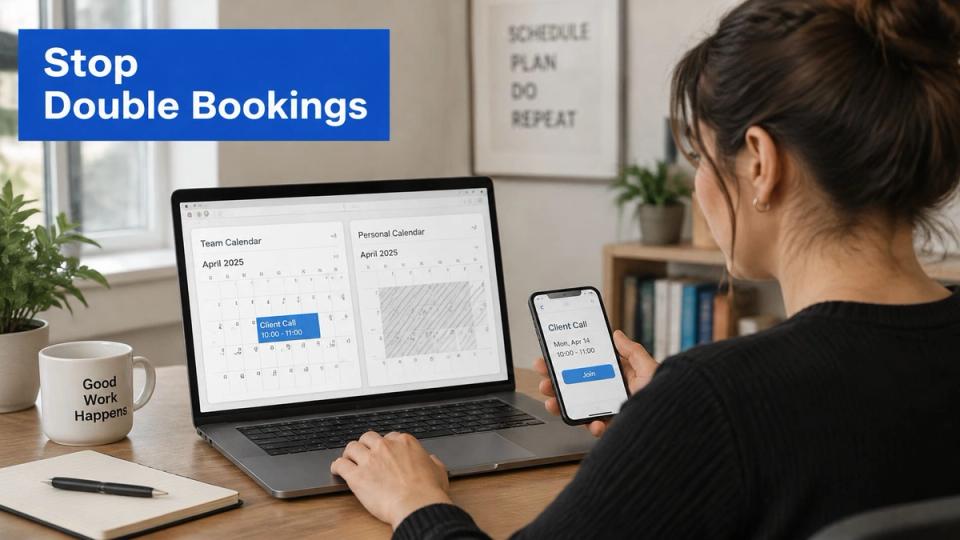
A connected calendar doesn't block every busy time you have. The page checks busy time only on the calendar it reads, so an event on a second calendar won't hide that slot. That's the gap that causes most double bookings, and it's quiet because the page looks correct until two bookings land at once.
You run a three part check on your calendars
- You confirm which calendar is connected by opening the tool settings and naming it out loud. Guessing here is how release days slip through.
- You compare it with the calendar you use for release days because premieres, story posts, and reposts often live in different places.
- You add a test event and you refresh the public page to see whether that time disappears. If it stays open, the page isn't reading that calendar.
Overlap between services causes the same problem in a smaller form. A premiere and an Instagram story on the same day can both book cleanly and still collide in your workload. One shared calendar for every service fixes that because each service reads the same busy times.
If you want outside reading on calendar conflicts, these smart scheduling tips for busy teams cover the same busy time logic for general teams. For curator specific setup, this guide to a SoundCloud focused booking setup shows how the calendar sits inside a premiere workflow.
If you run premieres through Premierely, the booker picks a free date on your calendar, which blocks double bookings by itself, and pays on the storefront before anything is scheduled. You still compare that calendar with your Outlook week before you go live because two correct systems can hold two different weeks.
One calendar, one source of truth, reviewed every Monday.
Collect the Right Details in the Booking Form
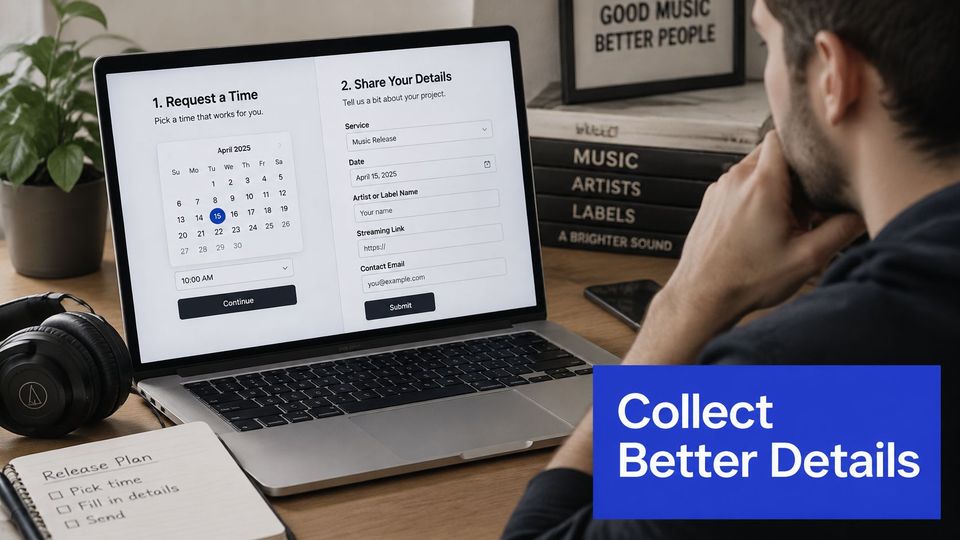
You split the form into two stages because a long first form kills good requests and a short one leaves you chasing files. At request time you ask only for what you need to decide.
You ask for decision details first and files later
Your first stage collects the service, a date from your open slots, the artist or label name, a music streaming link, a contact email, and a short message. You skip phone numbers at this stage because you don't need them to judge a track and artists hesitate to share them cold. This breakdown of a booking landing page that converts requests into paid slots shows how that short first step pairs with clear prices.
After you approve the request, the booker supplies the audio, artwork, title, and description. That order matters because rejected tracks never fill your storage and approved tracks arrive with everything in one place.
The short video below walks through a request form layout you can compare against your own fields.
You set asset checks from the channel rules
The SoundCloud upload requirements set artwork at at least 800 × 800 pixels and under 2 MB as a JPG or PNG, allow track descriptions up to 4,000 characters, and limit free accounts to a two-hour total upload limit.
- Artwork check: You reject files below 800 × 800 pixels at upload, not on release day.
- Description check: You cap the field so text doesn't get cut during publication.
- Capacity check: You watch your total upload time because a full account can't accept a new track until you remove older material or upgrade.
A missing or oversized file blocks a release even after you've made the editorial call. You put the checks at approval because that's the last point where a fix costs minutes instead of a missed date.
Fix scheduling problems before artists notice
Most post launch problems aren't random. Stacked bookings and last minute gaps come from missing rules, and you fix them in availability settings rather than by apologising in email. This guide to managing SoundCloud submissions without inbox chaos covers the request side of the same habits.
Common booking page problems and fixes
| Problem | Likely cause | Fix |
|---|---|---|
| A free slot shows that is already taken | The event is on a calendar the tool does not read | Check the connected calendar and move the event onto it |
| An artist books in the wrong time zone | The page shows the wrong or no time zone | Show the time zone on the page and repeat it in the confirmation message |
| Bookings stack up on one day | No daily limit is set | Set a daily limit of two or three bookings |
| Last-minute gaps appear | Minimum notice is set to zero | Set minimum notice to 24 hours |
| A canceled slot stays blocked | The old hold event was not removed | Delete the hold and check that the slot shows as free |
| Private event details are visible to bookers | Calendar sharing is set too broadly | Limit sharing to free and busy times only |
You test each fix from a second account
A taken slot that still shows usually means the event sits on the wrong calendar, so you move it and recheck. A wrong time zone booking means the page or confirmation hid the zone, so you show it in both places until it can't be missed.
A canceled slot that stays blocked usually means a hold event survived the cancel, so you delete the hold and refresh. Visible private details mean sharing is too broad, so you limit it to free and busy times only.
You test every change with a second account because a fix that looks right in settings can still fail on the public page. A weekly check against your calendar takes about ten minutes and catches most of this before an artist does.
You answer the questions curators ask most often
Do you need Outlook open for the booking page to work?
Most booking tools read your calendar on their own servers, so your laptop doesn't need to stay open. You confirm that in the tool's help pages before you rely on it because a tool that syncs only while Outlook runs will show stale slots overnight. Your specific action is simple. You close Outlook, you add nothing, and you check whether a test event still blocks the page.
Can one booking page serve several calendars?
Some tools read several calendars and merge the busy times, and some read only one. If yours reads one, you combine your availability into one shared calendar and you add release days, calls, and days off there. You don't split services across calendars because each split creates a slot the page can't see.
Who owns the audio and artwork that artists upload?
Ownership stays with the artist and your booking grants you permission to publish, not ownership of the work. You ask the booker to confirm in writing that they own or licensed every file before you approve, because you're the uploader if a claim lands. That one checkbox at approval protects your channel better than any message thread after publication.
What happens when you reject a request after payment?
You state your refund and rejection terms on the page before anyone pays, in plain words an artist can read in one pass. Vague terms turn a simple no into a dispute that costs more time than the booking was worth.
You test one booking before you share the link
You run one full test before the link goes anywhere public because settings screens hide failures that a real booking exposes in seconds.
- You book one slot from a second account, once on a phone and once on a laptop, because layouts break in different places. A form that works on desktop can hide its submit button on a small screen.
- You check the confirmation for the right time zone and the right service because artists trust that message over your page. If it names the wrong service, your booking types need clearer labels.
- You open Outlook and confirm the event appears once with the right length and buffer around it. A duplicate event means two tools are writing to the same calendar.
- You refresh the public page and confirm the booked slot disappears, then you share the link in your bio, email signature, or release post.
A test that passes on one device can still fail on another, so both devices belong in the run.
I would not skip the phone test to save five minutes. Most artists open your link from Instagram or TikTok on a phone, and that's the view that decides whether they finish the form. Run one test booking this week before you share the link with anyone.
If you want the calendar, payments, and publication in one booking system, the Free plan at €0 includes a shareable premiere and repost form, a booking calendar, repost automation including instant repost, and Stripe payments, with unlimited free bookings and 3 paid bookings a month. You approve each request once and the booker uploads the files, so your Outlook week and your premiere schedule stop drifting apart. Visit Premierely to set up your page and run your first test booking today.