A curator's inbox fills with premiere requests, but the audio arrives in one email, the artwork in another, and the release date is missing. Meanwhile, the artist is still deciding whether the song belongs on SoundCloud, YouTube, Bandcamp, or streaming services. You can upload a song for free, but choosing a destination and clearing the rights takes more care than sending the file.
Pick the right free place for your song first
Before you upload, name the goal: feedback, discovery, a premiere, direct sales, or an official streaming release. The right destination depends on what you want listeners to do, and each free route has a catch.
| Destination | Free route | Best use | Main catch |
|---|---|---|---|
| SoundCloud | Free Basic account upload | Demos, premieres and fan feedback | 2 hours of total audio on the Basic plan |
| YouTube | Free channel video upload, with a still image and audio | Video reach, visualizers and lyric videos | A video is required and copyright claims can follow |
| Bandcamp | Free upload and direct sales | Selling tracks straight to fans | The platform takes a cut of each sale |
| Free distributor | Free tier with delivery to streaming services | Official streaming release | A royalty share or fee set by each distributor's terms |
SoundCloud works well when you want to share a demo, gather fan feedback, or send a track to a premiere channel. YouTube suits a visualizer or lyric video, but a still image with the song still needs to be made into a video file. Bandcamp lets you sell music directly to fans, while free distributors deliver releases to services such as Spotify and Apple Music. Spotify requires an approved distributor, so you can't upload a release there directly.
Read the distributor's terms before you send a track. Some services that advertise free delivery charge through a continuing royalty share rather than an upfront fee. If you're weighing how publishing rights and royalty administration fit together, this guide to royalty administration and rights platforms offers useful background.
The release volume makes promotion a separate job from uploading. In its 2025 Year-End Report, Luminate says artists uploaded more than 106,000 tracks to digital service platforms each day in 2025. A free upload gets a song online; it doesn't, on its own, help the right listeners find it.
Choose one destination for this song based on its goal. That decision keeps you from spending release day preparing several different versions before you know what each one is for.
Clear your rights before anything goes public
A free upload still needs paperwork. If your song or video includes someone else's copyrighted recording, the rights holder's policy may monetize, track, or block the upload. Blocking can apply worldwide or only in certain countries, and a rights holder may later change its policy or issue a takedown notice. YouTube says permission must come from the rights holder, not from YouTube itself. Its guide to copyright claims and what happens next explains these outcomes.
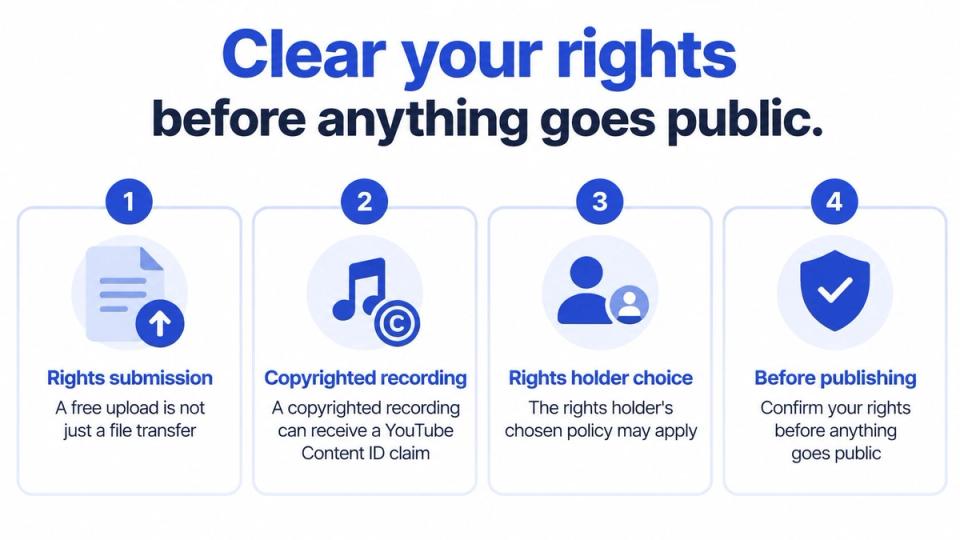
Before you make the track public, check each part that someone else may own:
- Confirm the composition and recording. Make sure you own them or have written clearance to use them.
- Clear samples and leased beats. Read the license for the exact uses you plan, including public uploads and monetization.
- Check collaborators and artwork. Confirm featured performers, remix credits, and permission to use the cover image.
- Keep the proof together. Store project files, split details, permissions, and licenses in one folder.
- Test the private upload. Switch to public or scheduled only after the processed track plays properly.
For more context on ownership and artist royalty rights, review the rights involved before you agree to publish or monetize a track. A music copyright checker can also help you think through the questions to ask, but it can't grant permission or replace a written license.
If a claim arrives, read the claimant's chosen policy before you dispute the claim or edit the upload. A block, a tracking claim, and a monetization claim have different effects, so check what the notice says.
Check the limits before you upload
SoundCloud's free Basic account allows 2 hours of total uploaded audio. If your account is over that allowance, you can't upload new tracks until you remove enough audio or change plans. Older tracks may also become hidden or appear grayed out when the account exceeds its total-minute limit, according to SoundCloud's upload requirements.
| Limit | Value | What happens |
|---|---|---|
| Total audio on a Basic account | 2 hours | No new uploads until audio is removed or the plan changes |
| Single file size | 4 GB | Larger files can't be uploaded |
| Single file length | 24 hours | Longer files can't be uploaded |
The per-file caps don't override the account total. A short song can still fail if your account has already used its available audio time. Before each upload, check the remaining allowance and remove old demos you no longer need.
Keep your lossless master on your own drive. If you need to post the track again, start from that master rather than downloading a compressed copy from another service. If you're unsure which file to keep, this guide to audio file formats can help you choose a suitable source.
YouTube and Bandcamp have their own rules and account limits, so check their current help pages before release day. Plan around the total allowance on the service you chose, not just the size of the file on your computer.
Upload to SoundCloud for free, step by step
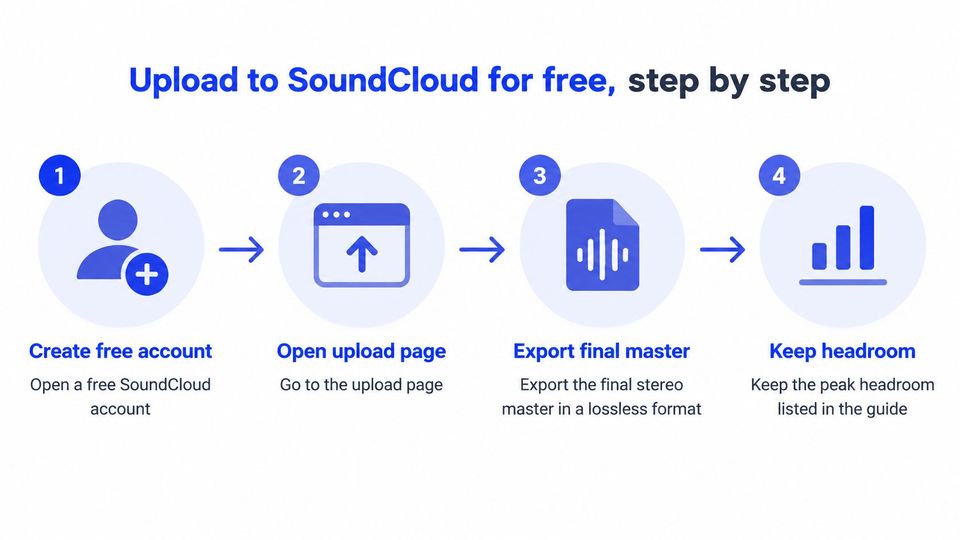
Start with a free SoundCloud account and a clean master file. SoundCloud recommends a lossless stereo file in WAV, FLAC, AIFF, or ALAC, at least 16-bit and 44.1 kHz, with about 0.5–1 dBFS of true-peak headroom. Those settings reduce avoidable quality problems during processing, as SoundCloud explains in its guide to uploading a track, EP, or album.
| Item | Recommended value | Why it matters |
|---|---|---|
| Format | WAV, FLAC, AIFF or ALAC | Lossless sources keep the detail in your master |
| Bit depth and sample rate | At least 16-bit and 44.1 kHz | Meets the baseline for clean playback |
| Peak headroom | About 0.5 to 1 dBFS true peak | Leaves room so the track doesn't clip after transcoding |
| Channel layout | Stereo, correctly interleaved | Mono or broken files can sound wrong on playback |
Prepare and upload the master
- Create a free account and open the upload page. Check that you're signed into the account where you want the track to live. Don't assume an upload from the wrong profile can be moved later without extra work.
- Export the final stereo master in a lossless format. Use the file specs above and keep the original master. An already-compressed MP3 can lose more detail when it's processed again.
- Check the channel layout and peaks. Confirm that the file is stereo and correctly interleaved, not mono or split into the wrong channels. A clipped or misconfigured export is easier to fix before uploading.
- Upload the lossless file. Let the upload finish, then enter an accurate title, genre, description, artwork, release date, and license. Generic tags and missing artwork make the track harder to identify and present properly.
- Choose the visibility. Set the track to public, private, or scheduled. Private visibility lets you listen to the processed version before other people can hear it.
SoundCloud converts audio for playback, so uploading an MP3 that has already been compressed can compound quality loss. A completed upload may still be processing or transcoding, so don't treat the upload bar reaching the end as proof that the track is ready.
Play the processed version on headphones and a phone speaker before sharing the link. Listen for clipping, missing channels, or a bad export, then fix the source file if something sounds wrong.
You can upload to YouTube and Bandcamp without paying
YouTube and Bandcamp serve different needs, so prepare a separate upload for each one. A YouTube upload is a video, even when the main content is a song and still artwork.
YouTube needs a video file
- Open YouTube Studio and choose Create, then Upload videos. If you only have audio, make a still image or artwork frame into a video that lasts for the full track.
- Add the title and description, then choose Unlisted. This lets you review the processed video before making it public.
- Check the copyright result before publishing. A claim may appear after upload, so review the result and make sure you have permission for the music and artwork.
Bandcamp supports direct sales
- Create an artist account and start a new track or album upload. Add the audio and artwork, then set the price.
- Choose a free or name-your-price option if you want fans to download without paying. Bandcamp takes a cut when a purchase happens, so account for that when you set the price.
- Match the release details to your other uploads. Keep the artist name, title, and credits consistent, and finish your rights checks before you publish.
Don't treat a YouTube upload as a rights-management tool. Ordinary video uploading and automated rights management are separate. YouTube says Content ID access is limited to eligible rights holders with exclusive rights to substantial original material that users often upload. A curator who posts a premiere video should confirm rights to the music and visuals, not assume that uploading itself clears them.
Send a free premiere request to a curator
A curator handling weekly premiere requests needs to make a clear decision, not chase missing files across email threads. The artist should send a release title, a streaming link, and a short message so the curator can judge the request before asking for finished assets.
Some curators offer free bookings, so a premiere request doesn't always cost the artist money. The curator can approve or reject the request first, then have the booker supply the audio, artwork, and press text after approval. That order keeps unapproved tracks from filling the curator's inbox and gives both sides a clear record of the decision.
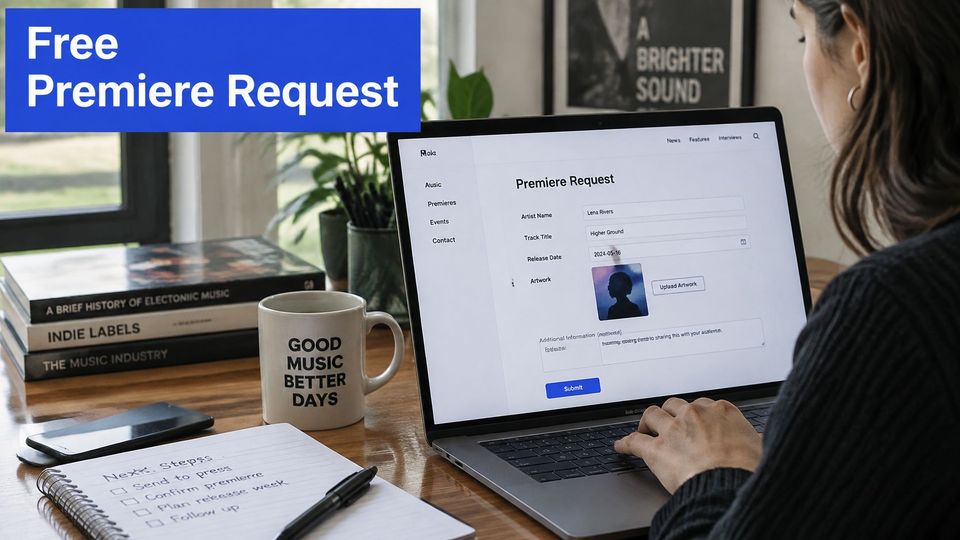
For a curator who posts across several channels, each accepted premiere can mean preparing separate assets, titles, descriptions, and posting times. Premierely is a booking system where artists find a curator's public storefront, request a premiere or repost, and pay there if the curator charges. The curator reviews requests in one queue, and the booker uploads the audio, artwork, and press text after approval.
One approval can schedule a premiere and publish it to the channels the curator connected. Free and Plus plans publish to one channel of the curator's choice, while Pro publishes to all connected channels. This saves repeat formatting and upload work, but the curator still decides what gets approved.
The booker should confirm the rights checks before the curator approves the request. That protects the curator's channel as well as the artist's release.
You can answer the last questions before you publish
Why isn't my track public right after upload?
SoundCloud may still be processing or transcoding the file. Wait until processing finishes, then check that the visibility setting is public or scheduled.
Can I change the title or artwork after publishing?
You can usually edit track details and artwork after publishing. Replacing the audio requires a new upload, so keep the lossless master you exported.
Will I lose quality if I upload a file I downloaded from another site?
You may lose quality if that file is already compressed. Start with the lossless master you exported yourself instead of using a downloaded copy.
Choose one free route and publish it this week
Pick the destination before you touch the upload button. A free upload is not one workflow. It is a choice of destination plus a rights check, and the admin work around files, credits, and approval is what usually decides whether the release lands cleanly. Write down whether this song is for feedback, a premiere, direct sales, discovery, or an official streaming release, then prepare the version that route needs. If the song is going to streaming as an official release, read this guide to earn royalties from Spotify releases and check the distributor's terms before you send the track.
Next, check the account limit and gather the lossless master, artwork, credits, and rights documents. Upload privately where the service allows it, then listen on headphones and a phone speaker. Fix any file, title, artwork, or rights problem before you publish. Leave time for delivery, review, and pitching before the public date. Distribution queues and curator inboxes do not move on your schedule, so set the date with room to spare instead of waiting until release day.
The Free plan costs €0 and includes unlimited free bookings, three paid bookings a month, one published premiere per day, and one distribution channel. If you run a curator channel, that gives you a way to accept free requests and manage a set publishing schedule while keeping approval in your hands.
Choose one destination today, check the rights and limits, and publish only after the test listen passes. The upload may be free, but a clean release depends on getting the files and permissions ready first.
If you run a premiere or repost channel, Premierely gives you a booking system where artists can request free or paid placements and you can review each request in one queue. Visit Premierely to set up a booking page and reduce repeated file collection and post formatting for the premieres you approve.